Android Pay is Google’s mobile payment service that lets you purchase anything (movies, food, music, tech gadgets even!) with your Android smartphone. Since unveiling Android 6.0 Marshmallow, Google has brought Android Pay to Android devices that don’t yet have access to the update but have Android 5.1 or Android 5.1.1 Lollipop. If you’re like me, you’re excited about Android Pay because of what it offers you: the chance to finally go wallet-less (it may not be a word, but it sounds wonderful). In order to go wallet-less, though, you’ll need to complete a few steps to learn how to add a credit card or debit card to Android Pay.
The first step to learn how to add a credit card or debit card to Android Pay is to make sure you have Android Pay installed on your Android smartphone. If you don’t, you’ll need to head over to the Google Play Store (an app that should be installed on your smartphone already), type in the words “Android Pay” in the search bar, then select “install” on the app page to get it. If you already have Android Pay installed, then you can proceed to the next step.
Once you’ve installed Android Pay, select it from the app icons on your Android smartphone. You may have to click “next” or “proceed “through a few screens in order to get started. Go ahead and do that. Next, you’ll see the screen you want to in order to learn how to add a credit card or debit card to Android Pay. The screen is titled “Add a credit or debit card,” and this is where you’ll add the cards you want to add to Android Pay. Select the “+” symbol at the bottom right of the screen.
Next, to learn how to add a credit card or debit card to Android Pay, you’ll need to either 1) add a card to Android Pay or 2) select a credit or debit card already shown to proceed further. If you’ve changed credit or debit cards recently, or had an old card expire, you’ll need to update Android Pay with a new, existing credit or debit card that is current and hasn’t yet expired. After you do that, you can proceed. For those who have an existing card shown, select the credit card or debit card number you want to link to Android Pay.
To learn how to add a credit or debit card to Android Pay, you’ll have to enter some details for a credit or debit card if you’ve not yet linked them to Google’s mobile payment service. You’ll be asked to enter the month, year, and CVC code for the card, along with either 1) editing or 2) confirming your current card’s billing address. The CVC code is the three-digit number on the back of your card that is located right near the white stripe where you provide a written signature. Once you enter the details, select “continue.”
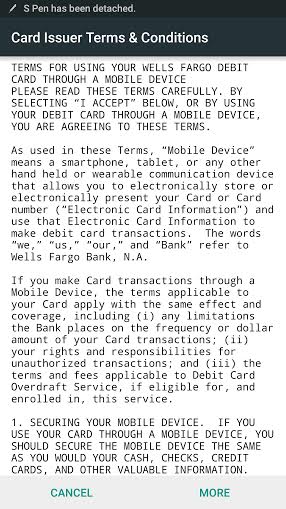
The next step in how to add a credit card or debit card to Android Pay is to agree to your bank’s terms and conditions. Most people don’t read through these, but it’s important to know what your bank has to say; after all, the bank is the one responsible for supplying a new card if you lose your card or your phone gets stolen. In a few words, the bank terms and conditions mandate you maintain responsibility over your phone since it contains your card information and can be used for electronic payments and purchases, and that you may be subject to mobile fees if you use Android Pay. Once you agree to these, Android Pay will contact your bank to verify your card information and expiration date.
Finally, to add a credit card or debit card to Android Pay, you’ll need to utilize a screen lock. “Android Pay requires screen lock to be turned on,” Android Pay reads. The reason behind this pertains to security; Android Pay mandates that you provide some sort of lock for your device. If you have a Google Nexus 6P, Nexus 5X, or some other Android smartphone that includes a fingerprint sensor, you can use your fingerprint to unlock your smartphone and use Android Pay. Even with a Samsung Galaxy S6 or a Galaxy Note 5, you’ll be able to use your fingerprint authentication with Google’s Android Pay service — so no need to worry about an alternate form of authentication. Additionally, make sure that you have Near Field Communication (NFC) enabled.
Once you learn how to add a credit card or debit card to Android Pay, you’ll be able to view your information within the Android Pay app at any time. Your bank will supply a virtual account number with your account so that, whenever you use Android Pay, your bank will supply the virtual account number instead of your real one so as to spare you from identity theft or bank fraud.
Have you found this how-to on setting up Android Pay useful? If so, write in and let us know how we’ve helped you transition to this new mobile payment era in which we now live.
Watching sport does not feel as self contained as it once did. It used to…
You're in the same meeting as your coworker. The deadline just got moved up by…
Imagine working alone on a late shift, driving between job sites, or checking a property…
Il y a quelques années, un changement fondamental s'est opéré dans le monde de la création de contenu. Pour un...
Depuis l'ouverture du premier casino au XVIIe siècle, ce secteur a fait...
Si vous avez passé ne serait-ce que quelques heures dans Princesse & Conquête, vous êtes probablement tombé sur...