Vous en avez assez de voir le même fond d'écran sur votre iPhone ou votre iPad ? À un moment donné, le besoin de personnaliser nos appareils et de se les approprier implique de changer le fond d'écran pour donner une nouvelle perspective à l'apparence de notre ou nos appareils. Pour apprendre à changer le fond d'écran de votre iPhone ou de votre iPad, vous devez d'abord savoir qu'Apple a fourni ses propres nouveaux fonds d'écran avec chaque mise à jour que vous avez immédiatement à votre disposition. C'est vrai : vous n'avez pas à vous soucier de télécharger des fonds d'écran car vous en avez déjà beaucoup sur votre nouvel iPhone ou iPad.
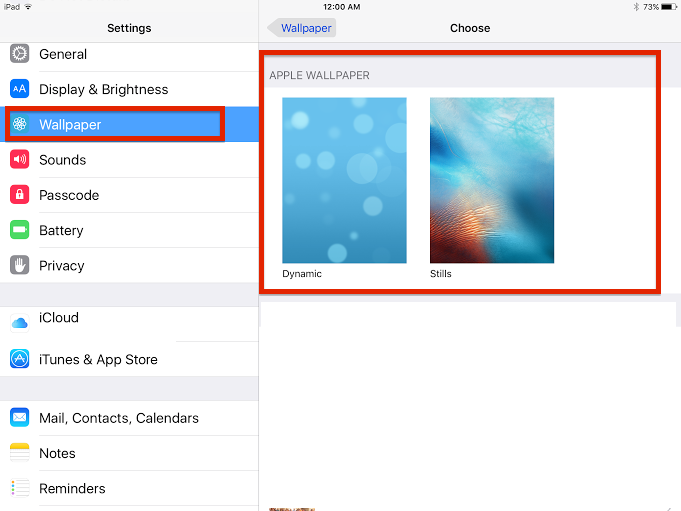
You can learn how to change the wallpaper on your iPhone or iPad by first, taking a look at the wallpapers Apple provides. To do this, you need only go to your iPhone or iPad settings, then select “wallpaper” on the left-hand side, at which point you’ll see your wallpaper settings appear. Next, select the arrow to the right of the words “choose a new wallpaper.” You’ll then be presented with either 1) dynamic or 2) stills as two unique wallpaper choices. Keep in mind that dynamic wallpapers are motion-based and will have motions on your desktop that can eat away at your battery. If you’ve been having battery problems, you may want to avoid these altogether. I’d recommend the Stills wallpapers, as they contain no motion and look good on your iPhone or iPad’s desktop at the same time.
Also, if you own an iPhone or iPad running iOS 9, you’ll notice that Apple has added new wallpapers to iOS as opposed to those in iOS 8. The new wallpapers are Stills, which seems the best way to go to make the most of the new additions Apple provides.
Select either “Dynamic” or “Stills” wallpapers, after which you’ll be taken into both sets of wallpapers to select the specific one you want.
Apprenez à changer le fond d'écran de votre iPhone ou iPad avec vos propres photos et captures d'écran.
In learning how to change the wallpaper on your iPhone or iPad, it’s easy to look at what Apple provides and assume that this is all you get. Apple is rather restrictive in what it allows you to do within its operating system, called iOS, but you may be surprised here. Believe it or not, Apple does allow a bit more customization than just the dynamic and still wallpapers pre-installed with the new OS. You can even add your own photos and screenshots and make them wallpapers as well.
Did our tutorial on how to change the wallpaper on your iPhone or iPad prove helpful? Would you like to see more of these how-tos? If so, feel free to let us know and give us an idea of what how-to(s) you’d like to see next.
Il y a quelques années, un changement fondamental s'est opéré dans le monde de la création de contenu. Pour un...
Depuis l'ouverture du premier casino au XVIIe siècle, ce secteur a fait...
Si vous avez passé ne serait-ce que quelques heures dans Princesse & Conquête, vous êtes probablement tombé sur...
Si vous êtes tombé dans le monde chaotique, magique et légèrement NSFW de Princesse et Conquête,...
Comprendre l'importance des fibres dans ARK Dans ARK : Survival Evolved, les fibres sont l'un des...
Path of Exile (PoE) est un jeu qui prospère grâce à son économie complexe et à ses échanges...