Are you tired of seeing the same background on your iPhone or iPad? At some point, the need to customize our devices and make them our own involves changing the background wallpaper to give the look of our device(s) a fresh perspective. In order to learn how to change the wallpaper on your iPhone or iPad, you must first realize that Apple has provided its own new wallpapers with each update that you have available right away. That’s right: there’s no need to worry about downloading wallpapers because you already have quite a few on your new iPhone or iPad.
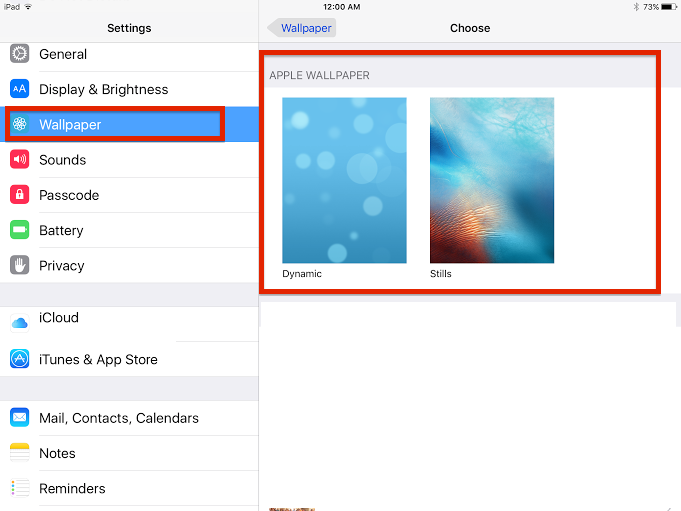
You can learn how to change the wallpaper on your iPhone or iPad by first, taking a look at the wallpapers Apple provides. To do this, you need only go to your iPhone or iPad settings, then select “wallpaper” on the left-hand side, at which point you’ll see your wallpaper settings appear. Next, select the arrow to the right of the words “choose a new wallpaper.” You’ll then be presented with either 1) dynamic or 2) stills as two unique wallpaper choices. Keep in mind that dynamic wallpapers are motion-based and will have motions on your desktop that can eat away at your battery. If you’ve been having battery problems, you may want to avoid these altogether. I’d recommend the Stills wallpapers, as they contain no motion and look good on your iPhone or iPad’s desktop at the same time.
Also, if you own an iPhone or iPad running iOS 9, you’ll notice that Apple has added new wallpapers to iOS as opposed to those in iOS 8. The new wallpapers are Stills, which seems the best way to go to make the most of the new additions Apple provides.
Select either “Dynamic” or “Stills” wallpapers, after which you’ll be taken into both sets of wallpapers to select the specific one you want.
Learn how to change the wallpaper on your iPhone or iPad with your own photos and screenshots
In learning how to change the wallpaper on your iPhone or iPad, it’s easy to look at what Apple provides and assume that this is all you get. Apple is rather restrictive in what it allows you to do within its operating system, called iOS, but you may be surprised here. Believe it or not, Apple does allow a bit more customization than just the dynamic and still wallpapers pre-installed with the new OS. You can even add your own photos and screenshots and make them wallpapers as well.
Did our tutorial on how to change the wallpaper on your iPhone or iPad prove helpful? Would you like to see more of these how-tos? If so, feel free to let us know and give us an idea of what how-to(s) you’d like to see next.
Watching sport does not feel as self contained as it once did. It used to…
You're in the same meeting as your coworker. The deadline just got moved up by…
Imagine working alone on a late shift, driving between job sites, or checking a property…
Something fundamental shifted in the world of content creation a few years ago. For a…
Ever since the first casino was opened in the 17th century, this sector has made…
If you've spent even a few hours in Princess & Conquest, you’ve likely stumbled upon…