
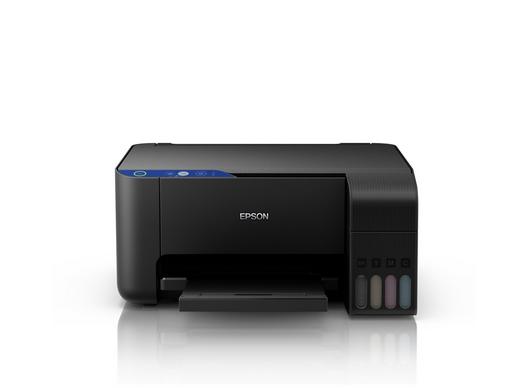

Printing in black color is probably one of the most important things especially when you are submitting a report or a project. In fact, black ink is the most used shade for printing which is why often times it is the black ink that runs out. Though this is the case, do not worry as through this article, we shall provide you a guide on how to print without black ink. Moreover, through this article, we would also feature different types and brands of printers and how to address the usual and common issues.
How to Print without Black Ink
Epson Printers
There are times when your black ink has ran out and you would really need to print something on your printer. Do not worry as even this is the case, you could still print and here is how to do this on Epson printers:
- Open control panel
- Select Devices and Printers
- Select printer’s icon and right click on it
- Select Properties
- Navigate to the ink set section
- Click on the Color option
- Do this even when your black ink runs out
- Select Apply
What to Do When Your Ink is Running Low
When You Are Using Mac:
- Cancel or stop the current printing job
- Open dialogue box on the Epson Printer Utility
- Select Driver Settings
- Select Permit Temporary Black Printing
- Navigate over the media typesetting
- Select plain paper
- Select Grayscale from the list
- Tamam'ı seçin
When You Are Using Windows:
- Cancel or stop current batch of printing job
- Navigate to Printers and Devices
- Select your Epson Printer’s icon
- Go to settings window for your printer
- Select Quality Options
- Select Plain paper as the type setting
- Go to Print Options
- Check Grayscale option
- Click Ok
Canon Printers
Mac Users:
- Right click on your printer’s icon
- Select Properties
- Select Printer Options
- On the Printer Features section, select Ink Type
- Select Color
- Click Apply
Windows Users:
- Navigate to Control Panel
- Select Devices and Printers
- Right click on the printer’s icon
- Select Printing Preferences
- Navigate through the Quick Setup tab
- Click Grayscale
- Disable duplex prints and borderless prints
- Select Plain Paper
- Click Apply
HP Deskjet Printers
- Denetim Masası'na gidin
- Yazıcıları ve Aygıtları Seçin
- Right click on the printer’s icon
- Select Properties
- Gezinin ve Mürekkep Seti sekmesine gidin
- Renk Setini Seçin
- Click Apply
Renkli Mürekkeple Siyah Baskı Nasıl Yapılır?
Renkli mürekkep kullanarak siyah baskı yapabilmeniz için iki yol vardır ve bunlar şunlardır:
- Gri tonlamalı baskı
- Kompozit baskı
Gri Tonlamalı Baskı Nedir?
Gri tonlamalı baskı işlemi siyah mürekkep kullanımını içerse de, siyah rengin yoğunluğunu hafifletir ve tonunu düşürür ve gri gibi görünmesini sağlar. Bu nedenle adı gri tonlamadır. Bununla birlikte, bu baskı yönteminin şaşırtıcı yanı, görüntülenen gri renklerin ölçeğini değiştirebilmenizdir. Bu yöntemin tek dezavantajı, belgenin resmi ve iş belgeleri olarak kabul edilememesidir.
Kompozit Baskı Nedir?
Ne yazık ki düşündüğünüz gibi değil. Hayır, bu bir 3D baskı değil. Kompozit baskı, farklı siyah renk seviyelerinde baskı yapmaktır. Bu, farklı renklerin birleştirilmesiyle mümkündür.
İşte modern kompozit yazıcılarla basılabilecek bazı siyah renkler:
- Düz siyah mürekkep kullanan yüzde 100 siyah (beyaz zemin üzerine siyah mürekkep)
- Üst baskı siyah - çeşitli arka planlar üzerinde kullanılan siyah mürekkep
- Zenginleştirilmiş siyahlar
Zengin Siyah
Bu renk yüzde 100 siyah ve yüzde 60 camgöbeğinin birleşimidir. Bu iki rengin birleşimi size daha derin, daha siyah ve daha zengin bir siyah sağlayacaktır.
Süper Siyah
Bu renk süper siyah bir renk elde etmenize yardımcı olur. Bu, yüzde 50 camgöbeği, yüzde 50 macenta ve yüzde 50 sarı olmak üzere 3 proses renk üzerine baskı yaptığınızda gerçekleşir.