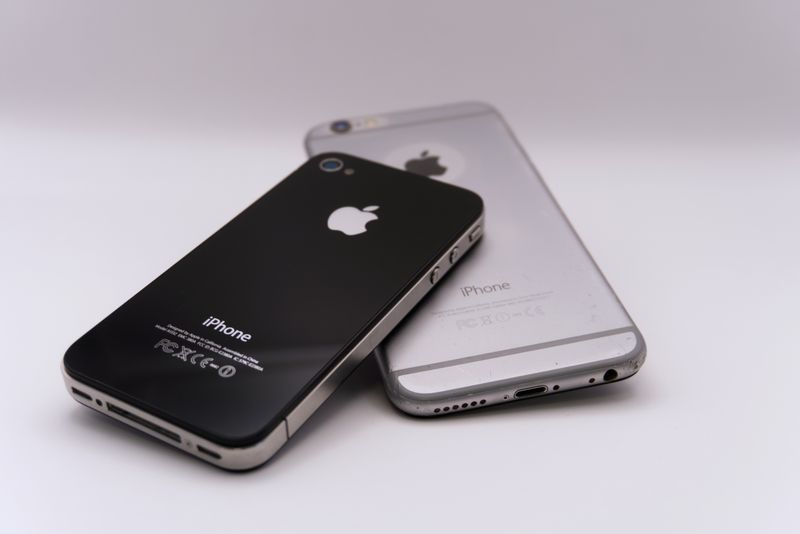

If you’ve upgraded your iPhone at least once, there’s a good chance an older model is sitting in a drawer. Instead of letting it collect dust, you can give it a second life as a baby monitor.
With two iPhones and the right monitoring app, one device can stay in the nursery while your current iPhone lets you watch and listen from another room. You can get live video, sound monitoring, and even crying alerts without buying a dedicated baby monitor or paying for a monthly service.
The setup is relatively simple, but choosing the right app and preparing the older phone properly can make a big difference in reliability.
Here’s everything you need to know before using two iPhones as a baby monitor.
What You Need
You don’t need much to get started:
- Two iPhones or compatible Apple devices: One stays in the baby’s room as the camera (the “baby unit”), while the other acts as the viewer (the “parent unit”). An iPad can also work for either role.
- A compatible monitoring app: Install the same baby-monitoring app on both devices. Look for features such as live video, audio monitoring, crying detection, push notifications, and two-way communication.
- A charger and cable: The nursery iPhone should remain connected to power during extended monitoring sessions.
- A secure phone stand or mount: A stable stand or properly secured wall mount helps keep the camera in position.
The app you choose matters. Some baby-monitoring apps offer free basic features, while others charge for video streaming, crying alerts, or remote access.
For example, the developer of BlinkBaby currently describes its app as free, with no account or subscription required for its core monitoring features. Check the current App Store listing before installing, as app pricing and features can change.
Why Not Just Use FaceTime?
A FaceTime call between two iPhones can work as a temporary baby-monitoring solution. You can leave one phone in the nursery and keep the other with you.
However, FaceTime isn’t designed specifically for baby monitoring.
An ongoing call can disconnect because of network problems, and incoming calls or other interruptions may affect the connection. It also doesn’t provide dedicated crying detection or automatic baby-monitoring alerts.
A purpose-built monitoring app can offer a more convenient experience. Depending on the app, you may get:
- Continuous audio and video monitoring.
- Notifications when crying is detected.
- Two-way audio to speak through the nursery phone.
- Background monitoring when the parent phone is locked.
- Connection status and automatic reconnection features.
These features vary between apps, so check the developer’s documentation before relying on them.
Prepare Your Old iPhone Before Putting It in the Nursery
Before turning your spare iPhone into a baby monitor, take a few minutes to prepare it.
1. Update iOS
Install the latest iOS version supported by your older iPhone. Also check the monitoring app’s minimum system requirements. Very old devices may not support newer applications.
2. Install the monitoring app
Download the same monitoring app on both iPhones. Follow its pairing instructions and grant the necessary camera and microphone permissions on the nursery device.
3. Reduce unnecessary notifications
You don’t want unrelated notifications lighting up the nursery phone or interrupting monitoring.
Silence unnecessary app notifications on the baby unit. However, make sure notifications from the monitoring app are allowed on your parent phone.
4. Configure Focus carefully
Do Not Disturb or another Focus mode can help prevent incoming calls and notifications from disturbing the nursery.
However, Focus can also silence notifications from your monitoring app. On your parent iPhone, go to Settings > Focus, select your preferred Focus mode, and make sure the monitoring app is included under Allowed Notifications.
If Focus settings are shared across your Apple devices, check that the nursery and parent phones have the intended settings.
5. Check Auto-Lock settings
Some monitoring apps continue streaming when the screen is locked, while others may require the app to remain open.
Check your chosen app’s instructions rather than automatically disabling Auto-Lock. If the screen needs to remain awake, follow the developer’s recommendations and pay attention to the phone’s temperature.
6. Consider Guided Access
If the nursery phone might be touched by a toddler or another child, Apple’s Guided Access feature can restrict the device to a single app.
Go to Settings > Accessibility > Guided Access and enable it. You can then start a Guided Access session while the monitoring app is open.
Placement and Safety: Where Should You Put the iPhone?
The placement of your baby-monitoring phone is just as important as the app you use.
Keep these safety considerations in mind:
- Keep it away from the crib: Never place the iPhone inside the crib, on the crib rail, or where it could fall into the baby’s sleeping area.
- Keep cables out of reach: Charging cables can create a strangulation hazard. The U.S. Consumer Product Safety Commission recommends keeping baby-monitor equipment and cords at least three feet (approximately one meter) away from the crib, bassinet, or play yard.
- Use a secure mount: A stable shelf or properly installed wall mount outside the baby’s reach is preferable to an unsecured phone stand.
- Allow ventilation: Video streaming and charging can generate heat. Don’t cover the phone, place it under blankets, or leave it inside an enclosed space.
- Avoid direct sunlight: Keep the device away from windows or other locations where it may become excessively hot.
- Check nighttime visibility: Older iPhone cameras may struggle in very dark rooms. A dim night light, positioned safely away from the crib, can improve visibility.
Never compromise the baby’s sleeping environment just to get a better camera angle.
Wi-Fi or Cellular: Which Connection Should You Use?
Most two-phone monitoring setups use your home Wi-Fi connection.
If both devices are connected to the same network, the initial pairing process is generally straightforward. Some apps can also work when the devices are connected to different networks.
Before relying on remote monitoring, check whether your chosen app supports viewing over cellular data.
It’s also worth testing the connection from different parts of your home. Walk into the kitchen, backyard, or basement while carrying the parent iPhone and see whether the video and audio remain stable.
If the connection drops in certain rooms, consider moving your router, improving your Wi-Fi coverage, or adding a mesh Wi-Fi access point.
Don’t assume an app supports remote viewing simply because it works over your home network.
Protect Your Privacy When Using an iPhone as a Baby Monitor
A baby monitor handles video and audio from one of the most private areas of your home. Privacy deserves attention before you leave a phone streaming overnight.
Before choosing an app, check its privacy policy and App Store privacy information.
Pay particular attention to:
- Whether video and audio are encrypted during transmission.
- Whether recordings are stored on the developer’s servers.
- Whether an account is required.
- Whether audio or video is processed locally or sent to cloud services.
- What permissions the app requests.
Use a strong passcode on both iPhones, keep their software updated, and secure your home Wi-Fi network with a strong password.
If the app offers end-to-end encryption, check its documentation to understand how the connection and encryption work.
Avoid using an unfamiliar monitoring app simply because it is free. The way it handles your family’s video and audio is just as important as its price.
Check the Battery Health of Your Old iPhone
An older iPhone may have a battery that has already experienced several years of use.
Although the nursery phone can remain plugged in, battery condition still matters. A worn battery may cause unexpected shutdowns or other reliability problems if the device is disconnected from power.
Open Settings > Battery > Battery Health to check its maximum capacity and performance condition. The exact menu wording may vary depending on the iPhone model and iOS version.
Use a reliable charging adapter and cable, and make sure the phone has adequate airflow while charging.
If the device becomes unusually hot, disconnect it and investigate the cause before using it again.
Test Everything Before the First Night
Don’t wait until bedtime to discover that your monitoring setup isn’t working properly.
Run a test during a daytime nap or another period when you can check both devices.
Use this checklist:
- Test the video: Confirm that the parent iPhone displays a clear view of the nursery.
- Test audio: Make a few sounds near the nursery phone and check whether you can hear them on the parent device.
- Test crying alerts: If the app offers crying detection, test it with suitable sounds and confirm that notifications arrive.
- Lock the parent phone: Check whether alerts still arrive when its screen is locked.
- Test Focus settings: Make sure Do Not Disturb isn’t blocking important monitoring notifications.
- Test two-way audio: Speak through the parent device and check the volume from the nursery phone.
- Test the connection: Walk around your home and check for buffering or disconnections.
- Check temperature: Leave the system running for a while and make sure neither phone becomes unusually hot.
A successful test gives you a better idea of how the system behaves before you depend on it overnight.
For a step-by-step walkthrough of the pairing process, see this guide on how to use two iPhones for baby monitoring.
A Bonus: Use Apple’s Built-In Sound Recognition
You don’t necessarily need a third-party app for every sound-monitoring feature.
iOS includes an accessibility feature called Sound Recognition. It can listen for certain environmental sounds, including a crying baby, and send a notification when it recognizes one.
To enable it:
- Open Settings on your iPhone.
- Go to Accessibility.
- Select Sound & Name Recognition.
- Tap Sound Recognition.
- Turn on Sound Recognition and select the sounds you want the phone to detect.
The exact menu wording may vary with your iOS version.
There is an important limitation: Sound Recognition listens through the microphone of the device on which it is enabled. It doesn’t automatically relay sounds from the nursery iPhone to your parent phone.
For example, enabling it on your parent iPhone may provide an additional alert if your phone can hear the baby from another room. However, it isn’t a replacement for a two-device monitoring setup.
Apple also advises against relying on Sound Recognition in situations where missing an alert could result in harm or injury.
Know the Limitations of a Phone-Based Baby Monitor
Using two iPhones is a convenient way to reuse hardware you already own, but it isn’t a perfect replacement for every dedicated baby monitor.
Older iPhones may have limited low-light performance, and the monitoring experience depends on the app, Wi-Fi coverage, device condition, and notification settings.
A phone-based monitor also doesn’t measure breathing, track vital signs, or diagnose medical conditions.
If your baby has health concerns that require medical monitoring, consult your pediatrician about suitable equipment.
Remember that a baby monitor is a convenience tool, not a substitute for appropriate adult supervision and safe-sleep practices.
Feature Image by Omar Gerardo at Pexels